Preparing for Remote Collaboration: Why Sessionwire Feels Like the First Time You Joined a Zoom Meeting (But for Real Studio Work)
Zoom gives you one audio channel. Sessionwire gives you two — one for talking, one for the music. Here's how to set up a remote session that actually feels like a session.
Brendan Lyons

Think back to your very first Zoom call. You probably don’t remember signing up for an account or downloading the app - it just happened at some point, and suddenly joining a meeting became a one-click experience. The same is true for Sessionwire. The first time you set it up (creating an account, downloading the app, installing the plugins/drivers if you want the full experience), it feels like a small hurdle. But once that’s done, hosting or joining a session is literally as simple as clicking a link - exactly like Zoom.
The difference? Sessionwire isn’t a general video-conferencing tool. It’s a complete virtual recording studio designed for musicians, producers, engineers, and anyone who creates audio professionally.
The Old Way: Cobbling Together a Dozen Apps
Remote collaboration used to feel like a patchwork quilt. You’d share your screen on Zoom, send stems via WeTransfer or Dropbox, stream high-quality audio through Audiomovers, chat on Slack, and pray the latency didn’t ruin the vibe. It worked - sort of - but it was clunky, unreliable, and always one dropped connection away from frustration.
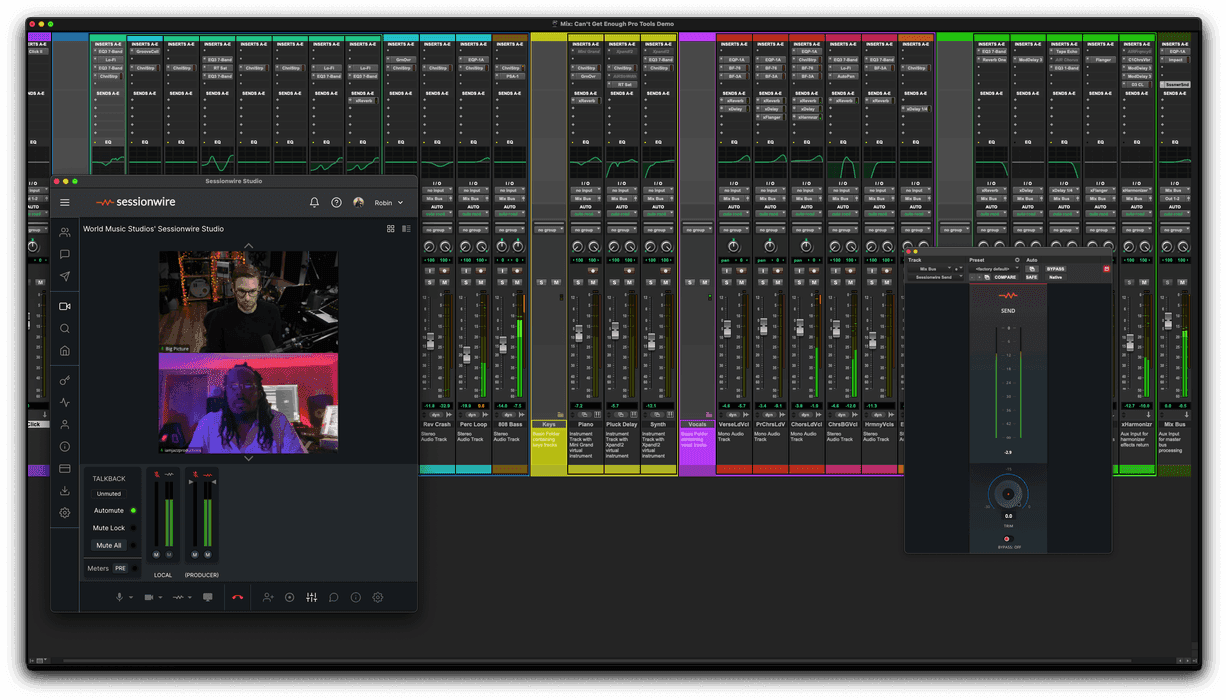
Sessionwire replaces all of that with a single, purpose-built environment:
HD video with natural talkback
A dedicated HQ Audio channel for pristine, low-latency, 48 kHz/32-bit playback
Drag-and-drop file transfer
Screen sharing
Built-in session recording
Remote Desktop Control
Vault cloud storage
It’s the closest thing to walking into a physical studio together - without the plane tickets.
The “Wow” Moment That Changes Everything
Most new users describe the same epiphany: the first time someone streams audio to them through Sessionwire, or the moment they play an instrument live through their DAW and the other person hears it instantly. It genuinely feels like being on the other side of the glass in a real control room. The clarity, the immediacy, the lack of artifacts - it’s the moment people realize remote work no longer has to be a compromise.
Talkback vs. HQ Audio: Why Two Streams Matter
Zoom has only one combined audio stream. When you try to route your DAW into Zoom, you’re fighting the same channel that carries your voice, which leads to latency, feedback, and compromised quality.
Sessionwire solves this elegantly with two separate streams:
Talkback: A mono stream with echo cancellation and noise suppression, designed purely for conversation. It works just like Zoom’s audio - choose your usual mic and speakers, and you’re good to go.
HQ Audio: A completely independent, high-quality stereo stream that you route into and out of your DAW using Sessionwire’s plugin suite (Send and Receive plugins). Your mix stays pristine, and you can play back at full resolution while still talking naturally.
Keeping the streams separate is the key to maintaining studio-grade audio quality while still having easy, natural communication.
Preparing Like You Would for an In-Person Session
The single biggest mistake people make with remote tools is treating them like a casual video call instead of a real studio session. In a physical studio, you wouldn’t start tracking without checking mics, cables, routing, and levels. The same mindset applies to Sessionwire.
Pro tips for hosts and guests
Schedule a quick 20–30 minute “soundcheck” session before the real work begins. Test audio routing, video, and file transfer together.
Send clear instructions in advance: “Click this link in Chrome, Edge, Brave, or Arc. No account needed for guests. We’ll test everything at 2 PM.”
Use a wired Ethernet connection whenever possible. Wi-Fi can work, but it’s like plugging a vintage Neumann U47 into a Neve 1073 through a wireless unit - it’ll probably be okay, but it’s never as stable or clean as a direct cable.
For the HQ Audio stream, most hosts simply insert the Sessionwire Send plugin on their master bus. The guests simply have to join a Sessionwire Studio in order to hear the HQ Audio being shared in the Studio.
How a Host Sets Up a Typical Session
Open your DAW and insert the Sessionwire Send plugin on the master channel (or if you want, insert the Send plugin on an Aux and create a "cue send" to the Aux for a customized mix).
Open the Sessionwire app, open your Studio, and copy the invite URL.
Send the link to your collaborators, along with a quick reminder: “First-time joiners, there’s a small one-time setup - just like the first time you used Zoom.”
That’s it. Guests click the link and join in seconds.
Guest Access: No Barriers, No Downloads Required
One of Sessionwire’s best features is browser-based access. Guests can join directly in any Chromium-based browser (Chrome, Edge, Brave, Arc, Opera) without downloading the app or creating an account. They’ll still get HD video, talkback, and the HQ Audio stream from the host’s DAW.
If they later want to host their own sessions, they can download the app and plugins/drivers and sign up for a membership - but for most collaborations, browser access is all they need.
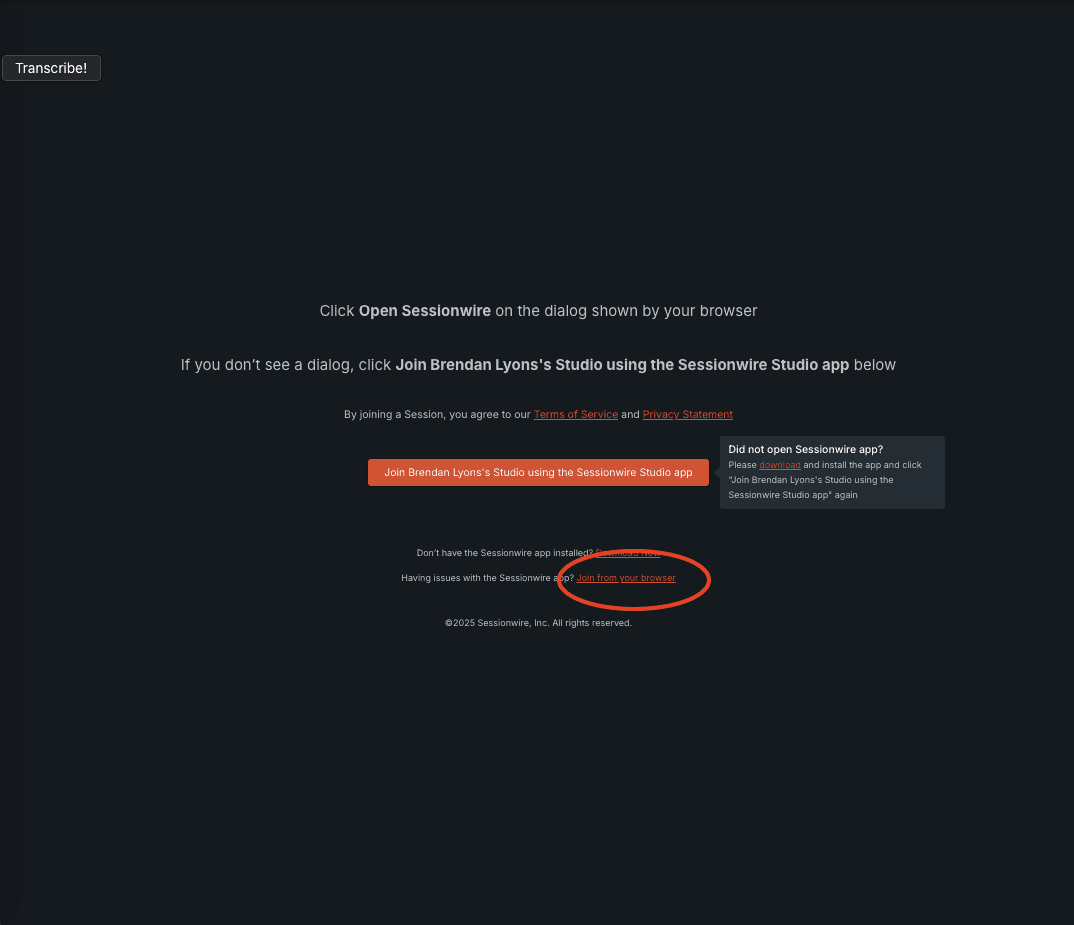
Clicking the invite URL will show the following screen, including the option to join via the browser.
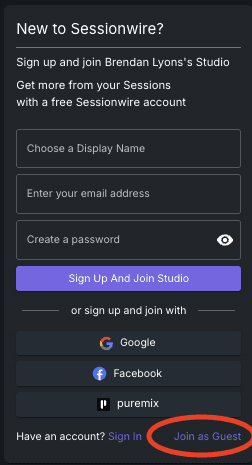
Guests can join without creating an account.
How Many People Can Join?
The Basic membership lets one guest join the Host. The Studio membership supports up to 50 people in a single Session - including a mix of visible/audible participants and invisible “Audience Members.” Audience Members can watch and listen while using Studio Chat to communicate with everyone. It’s perfect for workshops, masterclasses, or remote teaching - similar to a webinar but with studio-quality audio.
Creative Uses Beyond Mix Reviews
Sessionwire isn’t just for tracking and mixing. People are using it for:
Remote teaching and masterclasses
Co-writing
Foley sessions
Podcast production
Film scoring
Sound design for video games
Voice-over and ADR
Basically, anything you can do in a physical studio, you can do in a Sessionwire Virtual Studio.
A Few More Pro Tips
The Automute feature is magic: when HQ Audio is playing, talkback mics automatically mute for everyone. No feedback, no bleed - just like a real control room. When playback stops, mics unmute for natural conversation.
Remote Desktop Control (Studio plan only) lets you take over another participant’s screen if they’re using the full app - great for troubleshooting or collaborative editing.
Internet speed isn’t usually the bottleneck. Sessionwire uses roughly 2–5 Mbps on average. What matters most is stability - Ethernet over Wi-Fi every time.
Ready to Make Remote Feel Like Real?
Sessionwire’s first-time setup is like that one-time Zoom download: a small investment that pays off immediately. Once you’re set up, hosting or joining becomes a one-click process, and your remote sessions will feel more like real studio time than ever before.
Remote collaboration no longer has to feel like a compromise. Your next great record, mix, or masterclass can start with just one click.
Head over to sessionwire.com and start your free trial today - your next great collaboration is waiting.
Ready to open your Studio?
Start your 14-day free trial on Studio. No credit card required.